What Happens to Your Showit Site When Your Designer Goes Out of Business
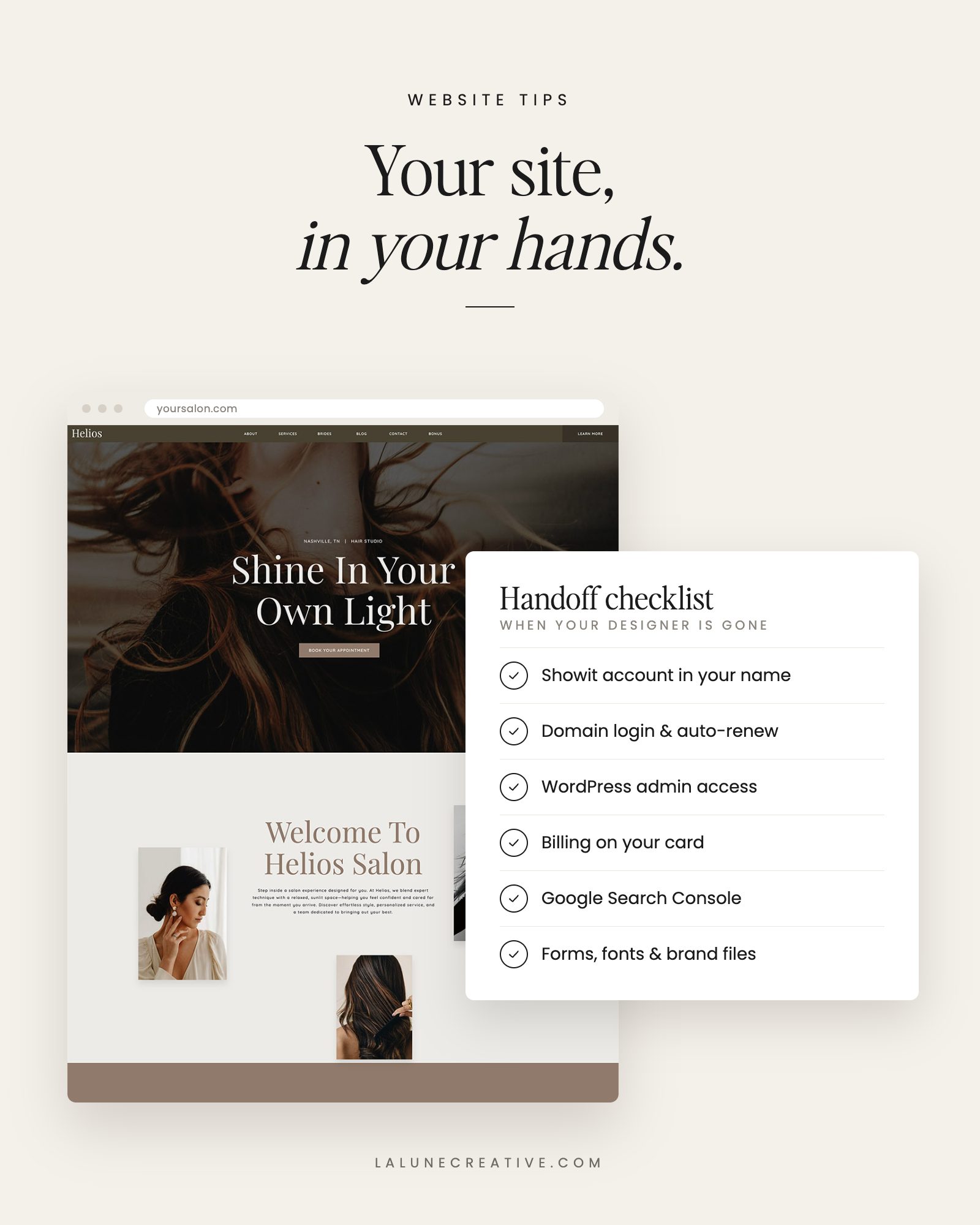
It happens more often than you would think. You invested in a beautiful Showit website, and then your designer closes their business, takes a full-time job, or simply stops answering emails. Suddenly you are wondering who is going to help when something breaks.
First, the good news: your website is not going anywhere. As long as your Showit subscription and your domain stay paid, your site keeps running. What you need to do is make sure you have access to everything, so you are never stuck waiting on someone who is not coming back.
Step 1: Make sure the Showit site is in your account
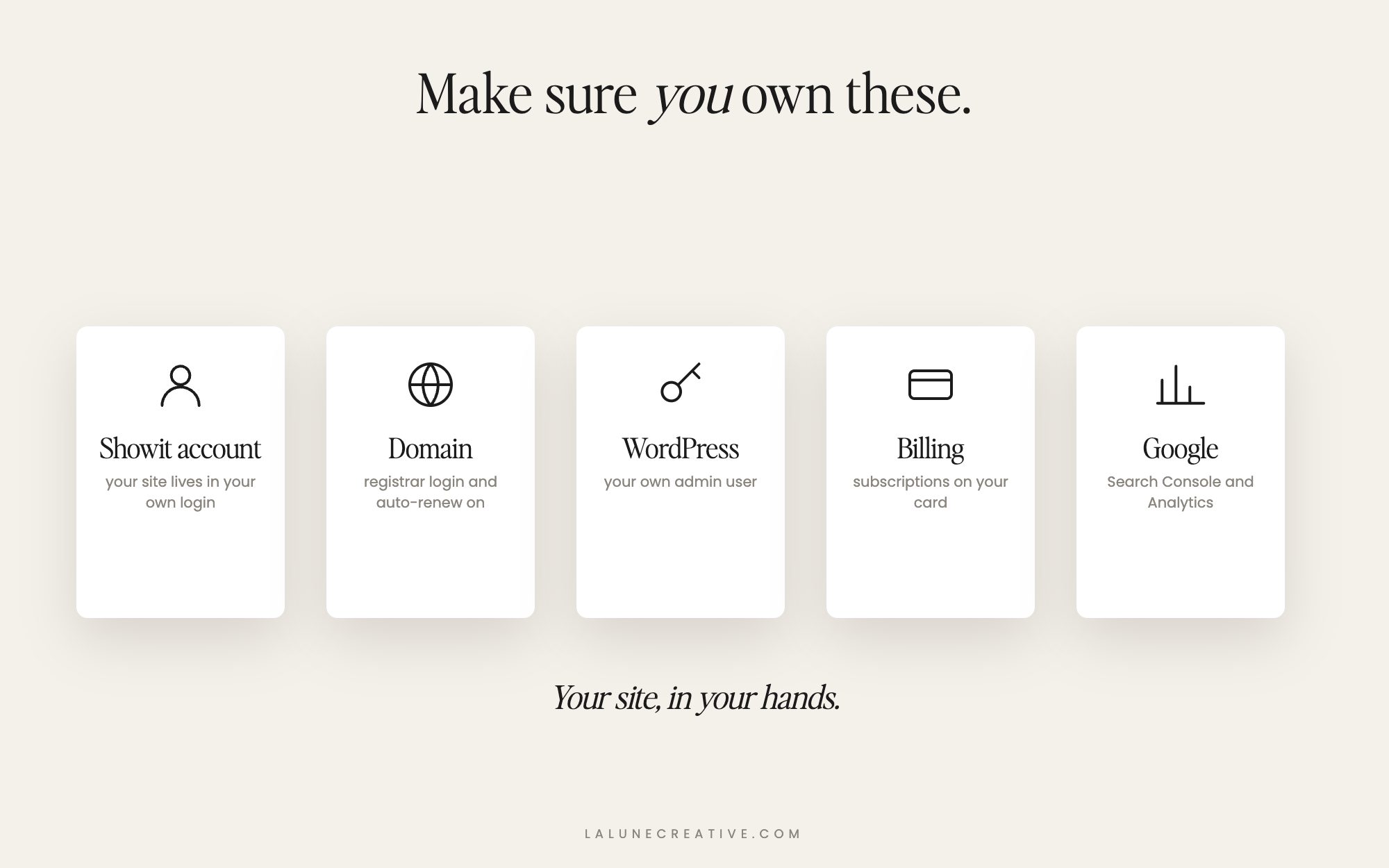
Log into Showit with your own email. If you can see and edit your site, you are in good shape. If your site lives inside your designer’s account instead of yours, reach out to Showit support and ask how to get it moved into your own account. Do this while you can still reach your designer if possible, since it is much easier with their cooperation.
Step 2: Confirm you control your domain
Your domain (yourbusiness.com) is registered somewhere like GoDaddy, Squarespace Domains, Namecheap, or Cloudflare. Make sure:
- You can log into the registrar account yourself.
- Auto-renew is turned on and the card on file is yours and current.
- The account email is one you check. An expired domain takes your whole website and email down with it.
Step 3: Check your WordPress blog login
If you have a blog on the Advanced Blog plan, you should have your own administrator login to WordPress. Log in and look under Users. If your designer’s account is the only admin, create one for yourself with your own email. Once you are sure your login works, you can remove or downgrade the designer’s account.
Step 4: Update billing and contact details
Make sure your Showit subscription is billed to your card, not your designer’s, and that account emails come to you. A declined card on someone else’s account is one of the most common ways a site quietly goes offline.
Step 5: Claim your Google accounts
Google Search Console and Google Analytics show how people find your site. If your designer set them up, ask Google for owner access in your own name. In Search Console you can verify ownership yourself through your domain settings.
Step 6: Check your forms and connections
- Submit your own contact form and make sure the email arrives in your inbox.
- Check that email signup forms still connect to your newsletter platform.
- Test booking links, payment links, and anything else that sends visitors somewhere else.
Step 7: Gather your brand files
Ask for (or track down) your logo files, brand fonts and their licenses, color codes, and any original photos. Having these in your own Dropbox or Google Drive saves a lot of headaches later.
Who helps you now?
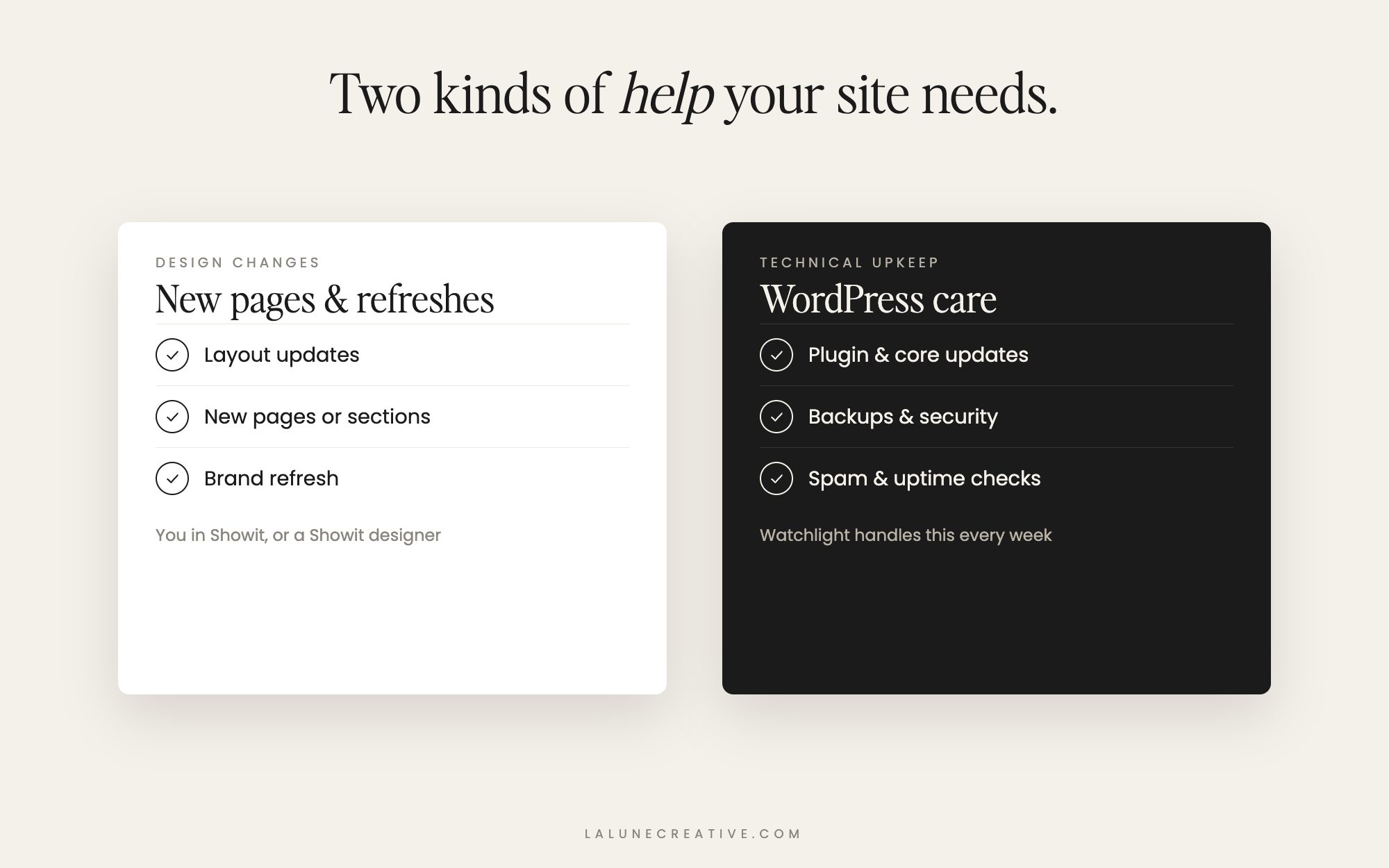
There are two kinds of help a Showit site needs:
- Design changes like new pages, layout updates, or a refresh. Showit is built so you can make most of these yourself, and there are plenty of Showit designers who take on one-off projects.
- Technical upkeep for the WordPress blog behind your site: plugin and core updates, backups, security, and spam. This is the part most people forget about until something breaks.
For the technical side, that is what Watchlight is for. We handle your WordPress updates, backups, security and uptime checks every week, send you a monthly report, and you have a real person to email when something goes wrong. If your site has gone a while without care, Emberlight is a one-time cleanup and audit to get everything back in order first.