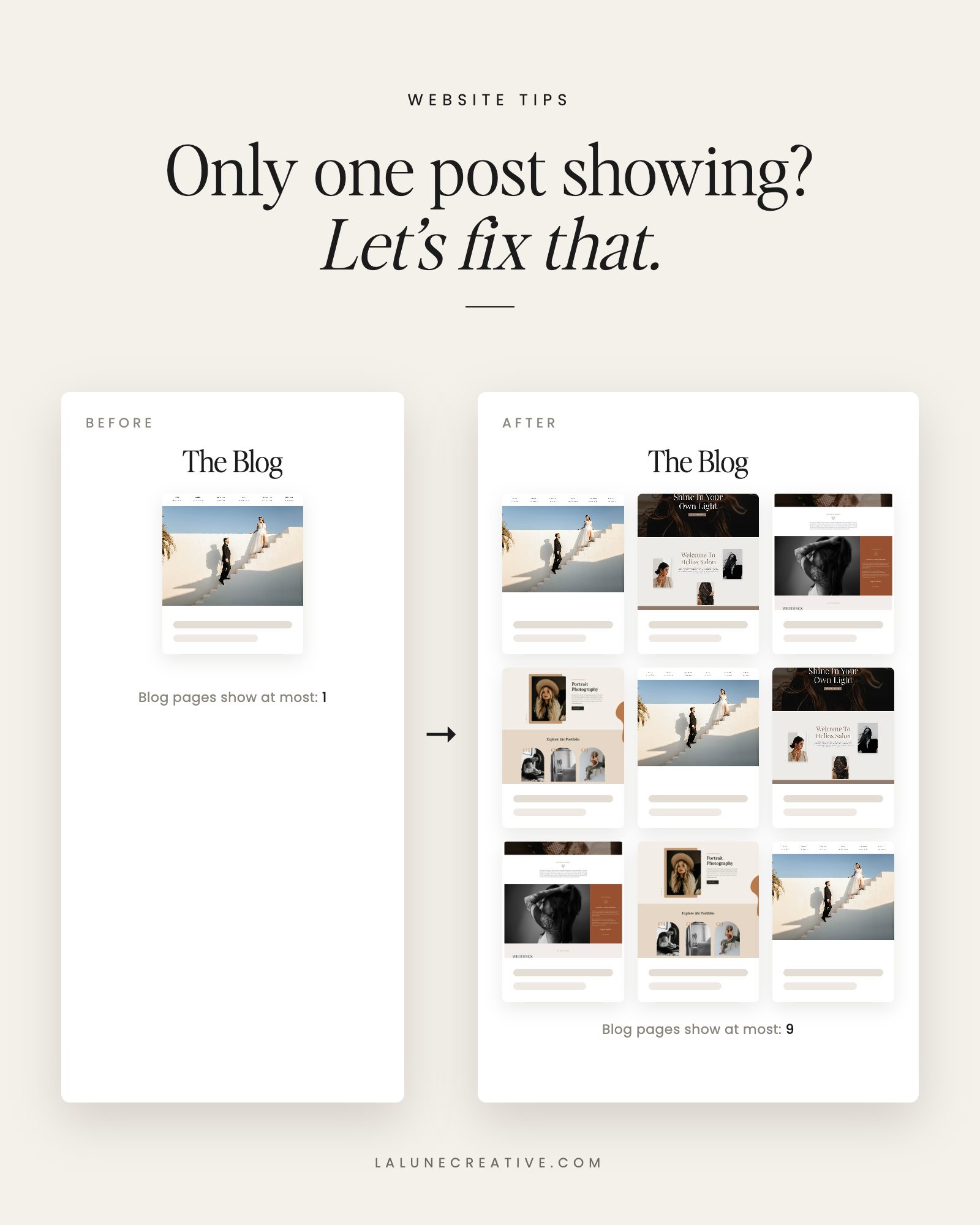
You have written a handful of blog posts, but your Showit blog page only shows one of them (or two, or the wrong ones). It is one of the most common Showit blog problems, and the fix is usually a single setting. Here are the causes to check, in order.
1. WordPress is set to show only one post per page
The number of posts on your blog page is not set in Showit. It comes from WordPress.
- Log into your WordPress dashboard.
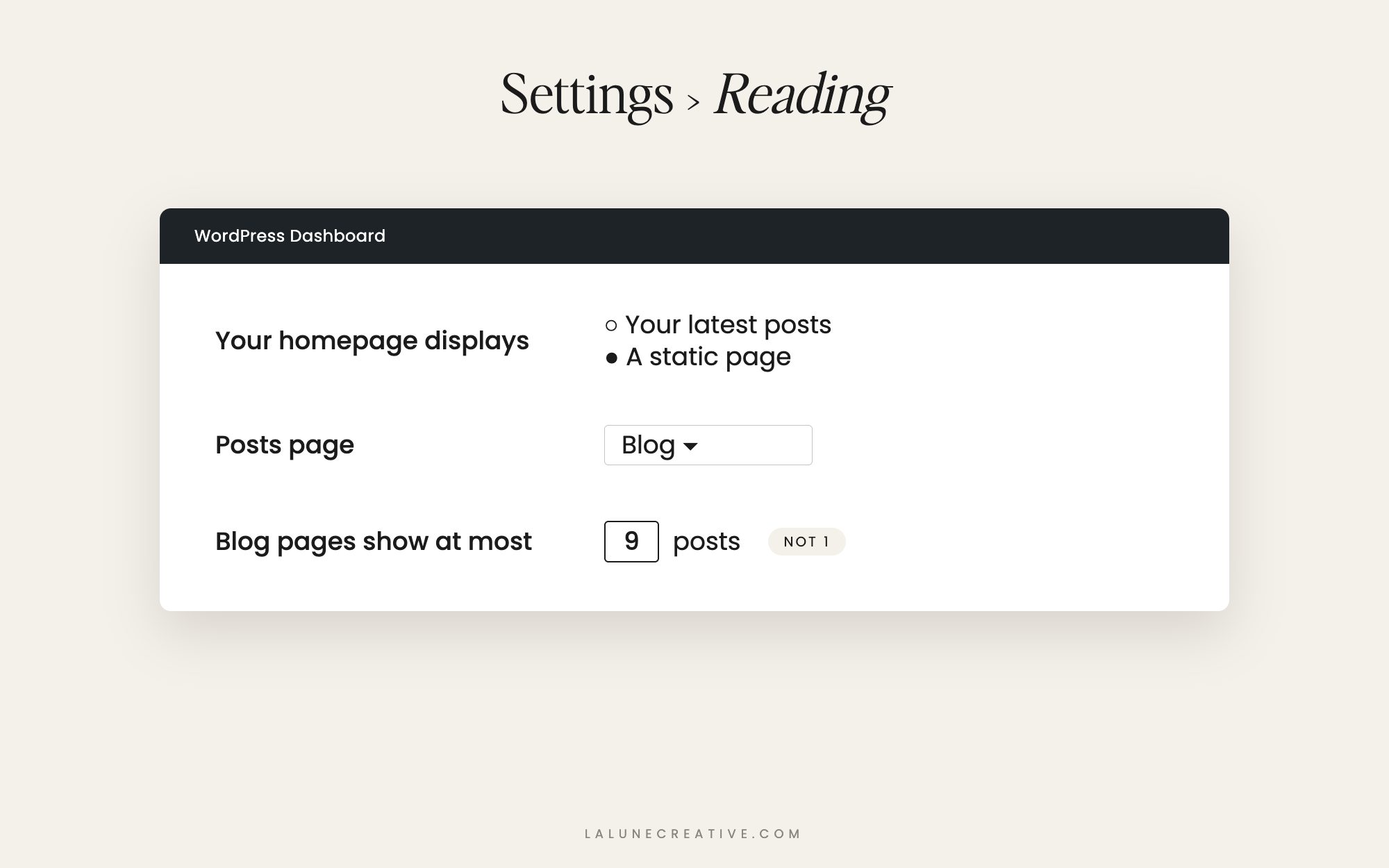
- Go to Settings > Reading.
- Find Blog pages show at most and set it to the number of posts you want per page (6, 9, or 12 work well with grid layouts).
- Save changes and refresh your blog page.
If your layout shows three posts side by side in one canvas, pick a multiple of three so your last row is not half empty.
2. The post preview canvas is the wrong type
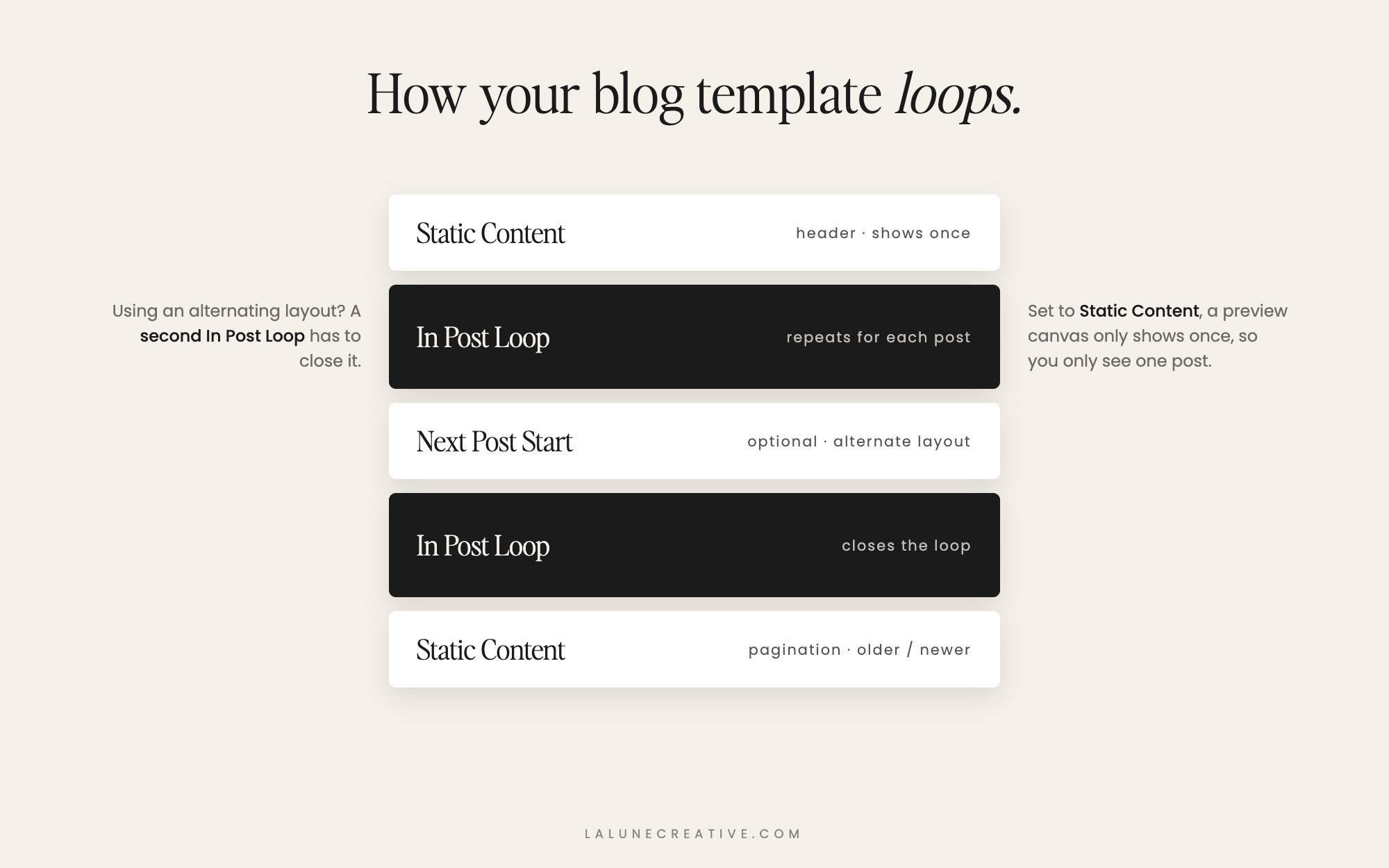
In your Showit Blog (Post List) template, the canvas that holds your post previews has to be set to the In Post Loop canvas type. That tells Showit to repeat the canvas for every post WordPress sends it.
If that canvas is set to Static Content, it only shows up once, so you only see one post. Select the canvas, open its WordPress settings in the right-hand panel, change the type to In Post Loop, and publish.
3. An alternating layout is not closed properly
If you use two different preview designs that alternate (for example, image left, then image right), Showit uses an In Post Loop canvas followed by a Next Post Start canvas. The Next Post Start canvas has to be followed by another In Post Loop canvas to close the loop. Without that closing canvas, the loop never restarts, and your blog can stop after the first post or two.
4. You are using a Posts View Lookup canvas
A Posts View Lookup canvas is built for featured or recent posts sections, and it pulls a set number of posts using rules you choose, like category or date. If you used one for your main blog list and set it to one post, that is all you will see. Either increase its post count or use an In Post Loop canvas for your main list instead.
5. The posts are not actually published
In WordPress, go to Posts and check the status of each one. Drafts, scheduled posts, and private posts will not appear on your live blog. Also check that the post date is not set in the future.
6. Your Reading settings point to the wrong page
For Showit blogs, WordPress’s Reading settings should be set to A static page, with the Posts page set to your blank WordPress page named “Blog.” If that is missing or pointing at a different page, your blog can load incorrectly.
Still stuck?
After changing anything in Showit, remember to publish, then check your blog in a private browser window so you are not seeing an old cached version. If it still is not right, Showit’s support team is very helpful with blog template questions.
And if you would rather have someone keep the WordPress side of your blog healthy for you, that is what Watchlight does: weekly updates, daily backups, security and uptime checks, and a real person to email when something looks off. It is available for Showit sites on the Advanced Blog plan and any WordPress site.
Want a Showit blog that’s set up right from the start? Savannah, our Showit template for photographers and bloggers, comes with its blog templates already built.